
Software-In-The-Loop Simulation (SITL)
Introduction
Software-in-the-loop simulation creates a software simulation environment on a computer, simulating a real aircraft through a six-degree-of-freedom model; all sensors are virtual.
Note: software-in-the-loop simulation only supports UDP communication connections.
Simulation Environment Setup
- Operating system: Windows;
- Software: QEMU, ground control station.
Installing QEMU
Download QEMU for Windows – Installers (64 bit); version 7.1.0 or later is recommended;
Double-click the installer; the default installation on the C drive is fine;
After installation, add the QEMU installation directory
C:\Program Files\qemuto the environment variables.Open a Windows terminal and enter the following command to confirm the installation succeeded
bashqemu-system-x86_64 --version
Installing the Ground Control Station
On the Downloads page, download and install the ground control station; installing it on the D drive is recommended.
Starting the Simulation
Creating a Connection
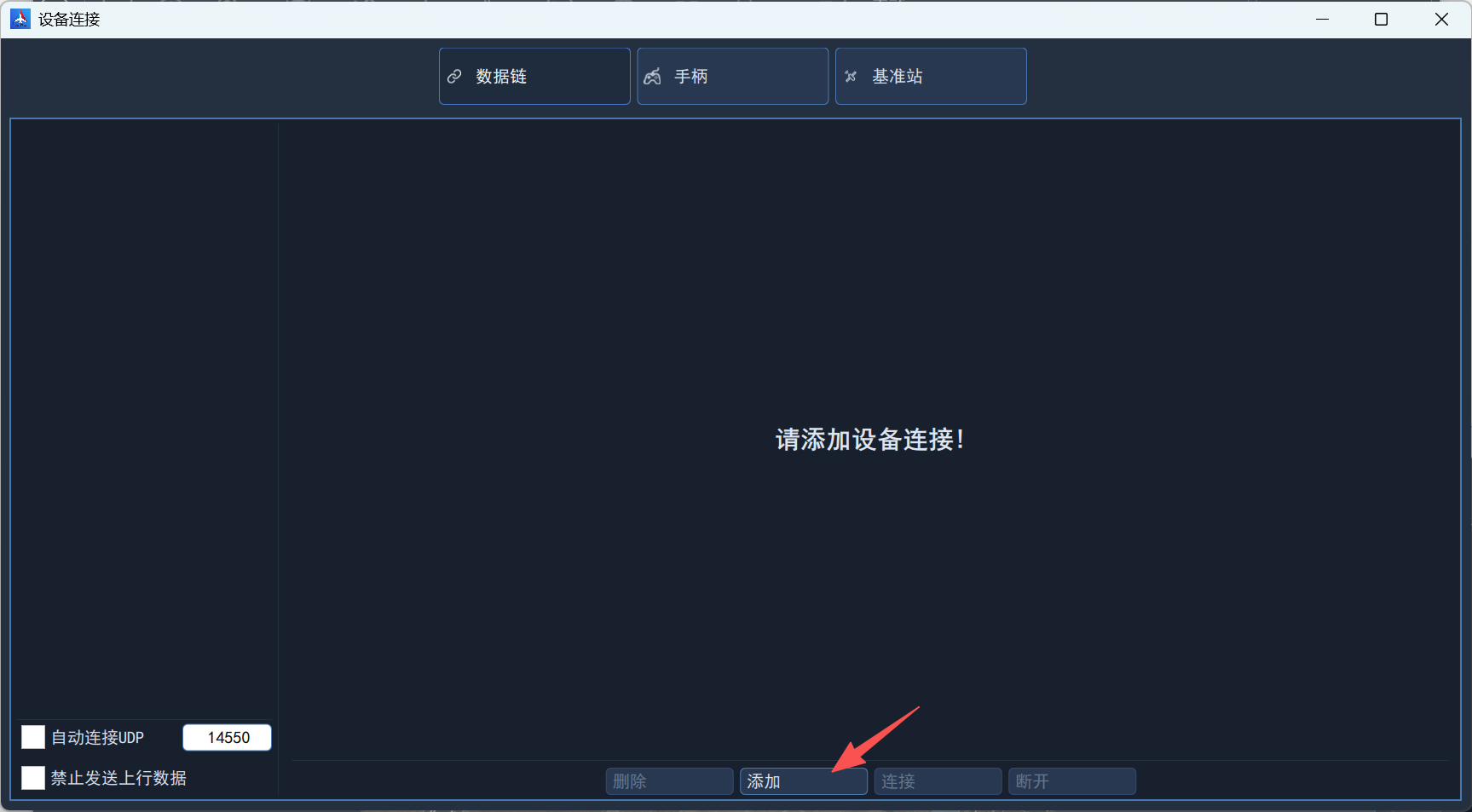
In the General section of the left sidebar of the ground station, click Device Connection; once on the device connection screen, click the Add button.
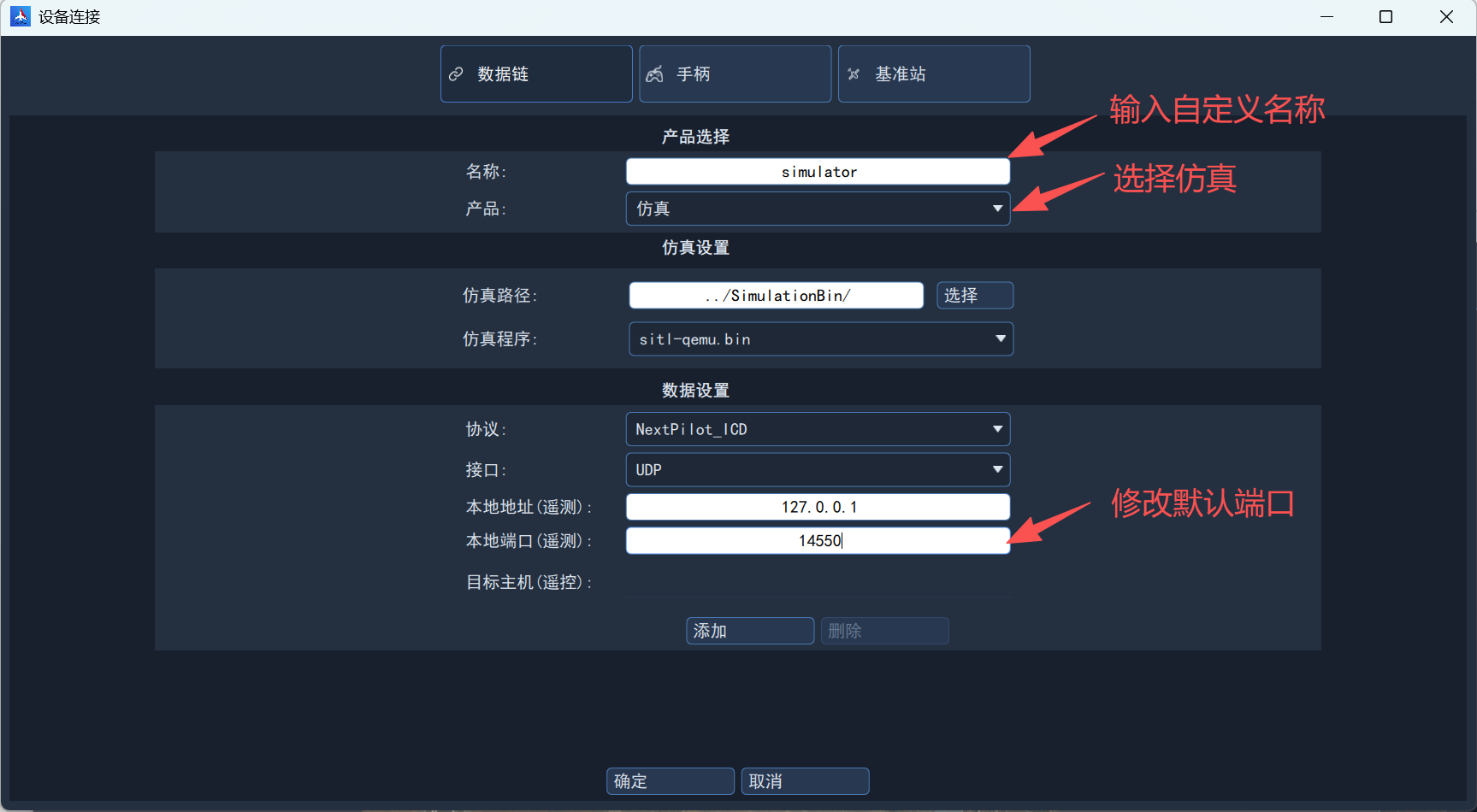
On the newly created device connection screen, click the product drop-down list and select Simulation, change the local port to 14550, and click OK.
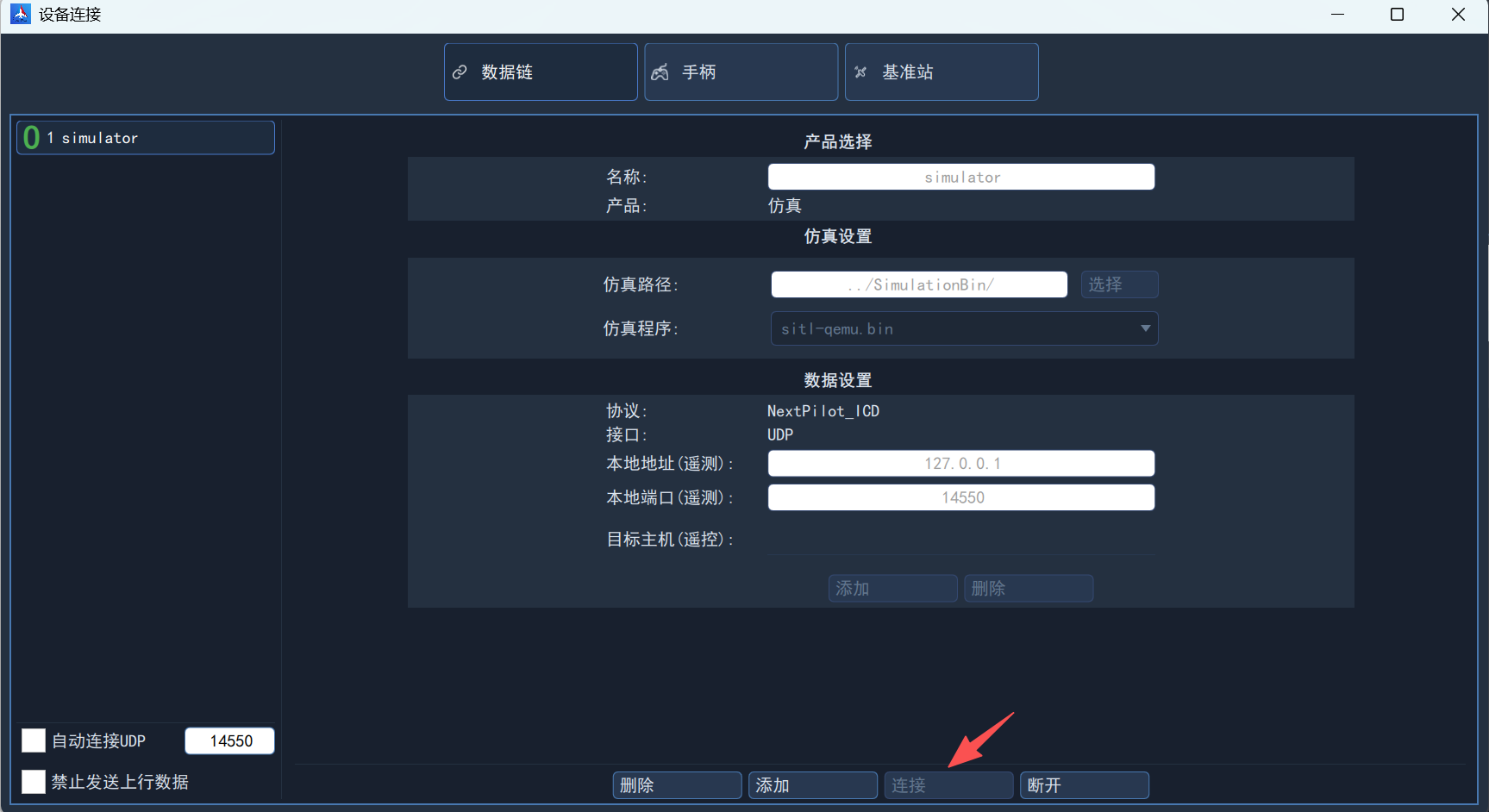
Then click Connect to start the simulation and establish a communication link with the simulated UAV.
Main Screen
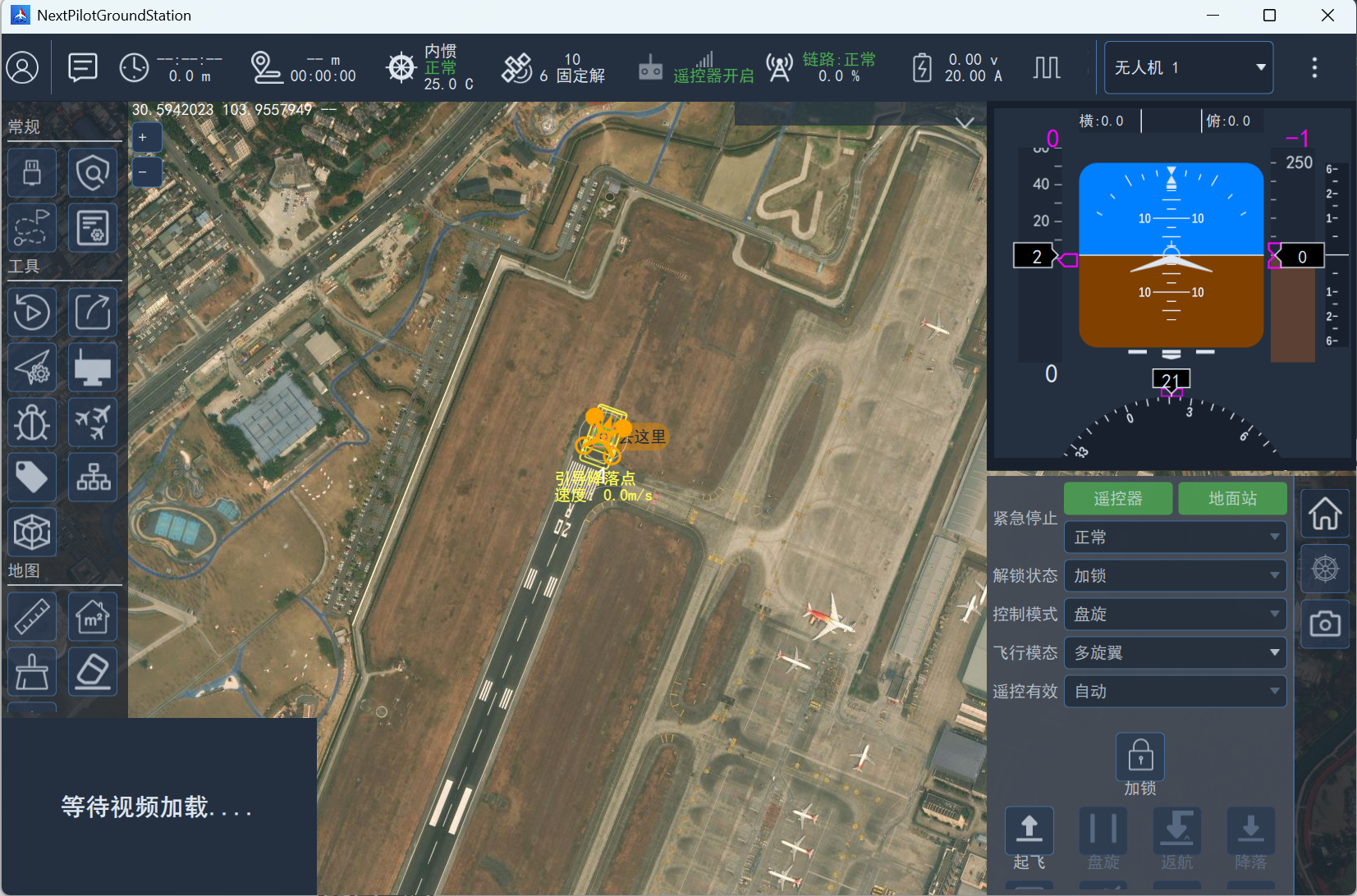
After starting the simulation, the UAV is shown on the map on the main screen.
The default airframe is a VTOL fixed-wing.
QEMU Terminal
In the Tools section of the left sidebar of the ground station, click Link Device; the link device screen shows the simulation terminal. 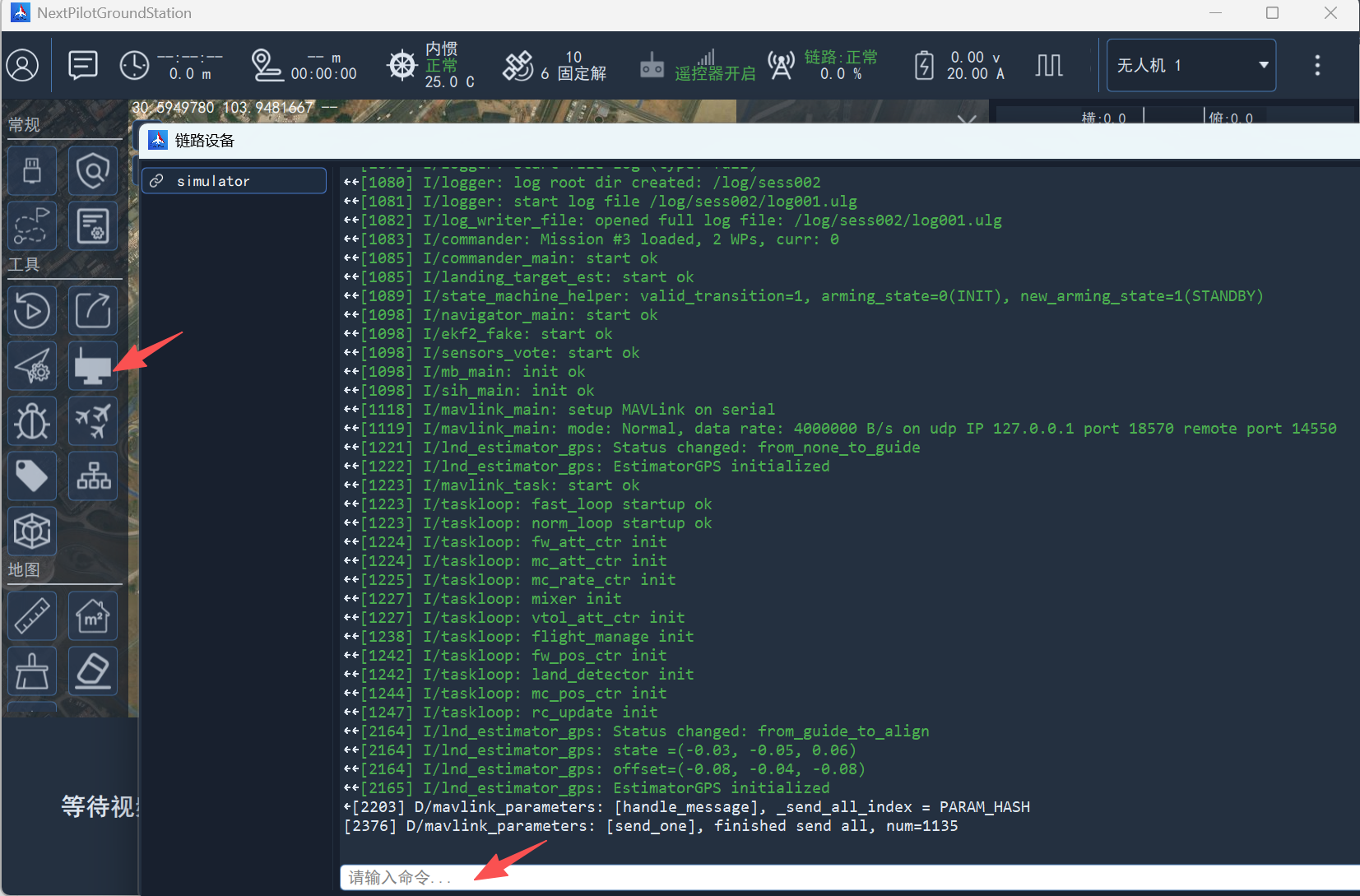
You can enter autopilot debug commands in the dialog box at the bottom, for example:
View current processes
bashpsView MAVLink communication status
bashmavlink status info
Common Operations
Modifying Parameters
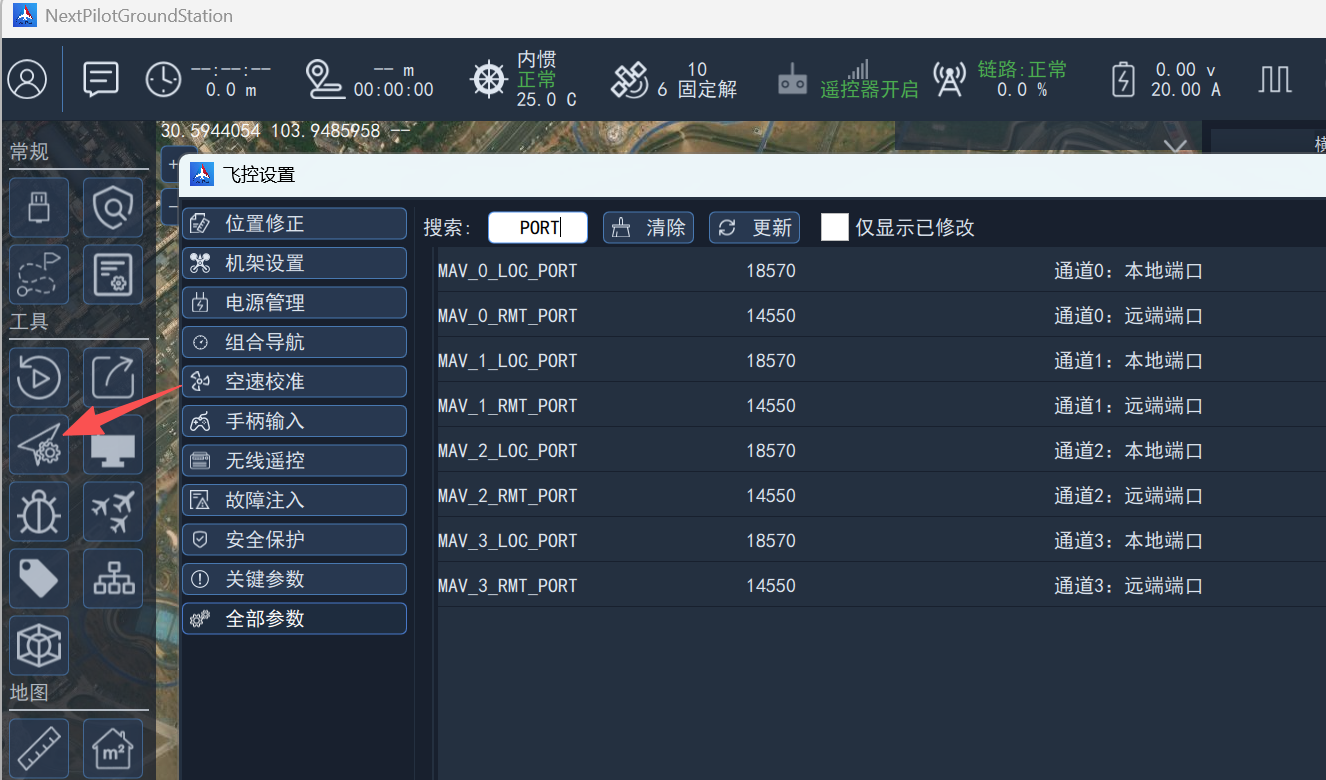
In the Tools section, click Autopilot Setup, then click All Parameters on the autopilot setup screen. Enter a keyword to find the corresponding parameter.
Saving Parameters
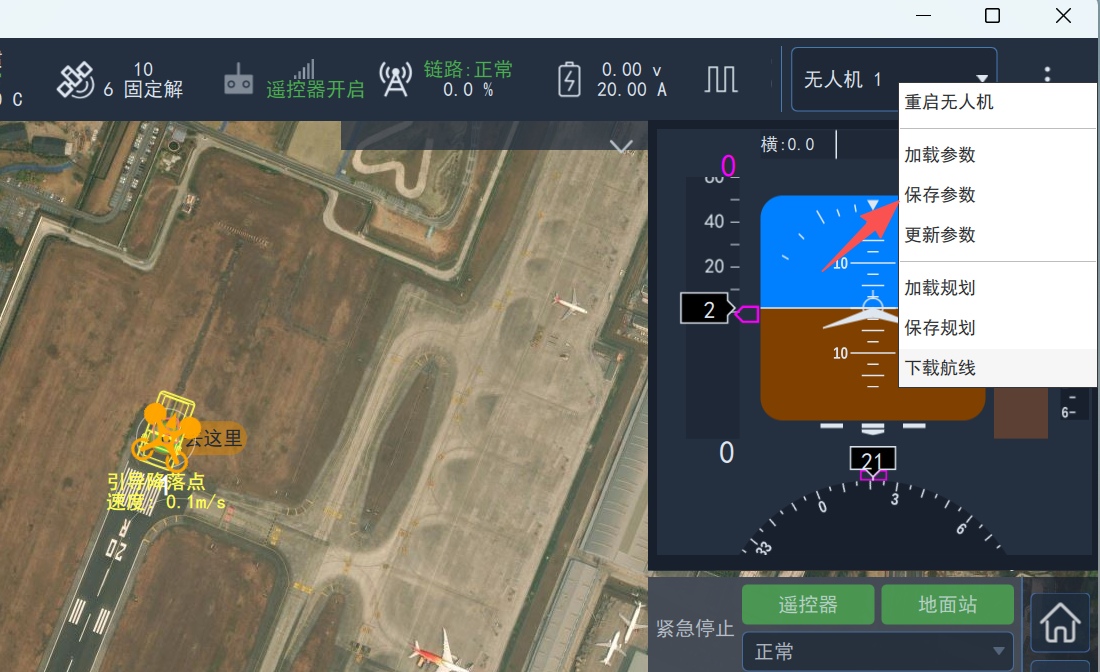
Click Save Parameters in the top-right corner.
Viewing Logs
In the SITL Scripts section, download the log extraction script extract_sd.bat, then place it in the SimulationBin folder under the ground station installation root directory, and copy sd_14550.bin and rename it to sd.bin.
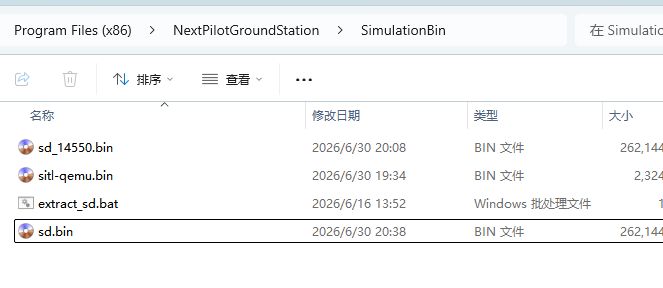
Double-click the extract_sd.bat script to extract and create an sd folder in the current directory; flight logs can be found in that folder.
Before running
extract_sd.bat, 7-Zip must be installed to the default path!