
Parameter Operations
Introduction
The NextPilot autopilot has powerful parameter management; parameters are configured to control autopilot "behavior".
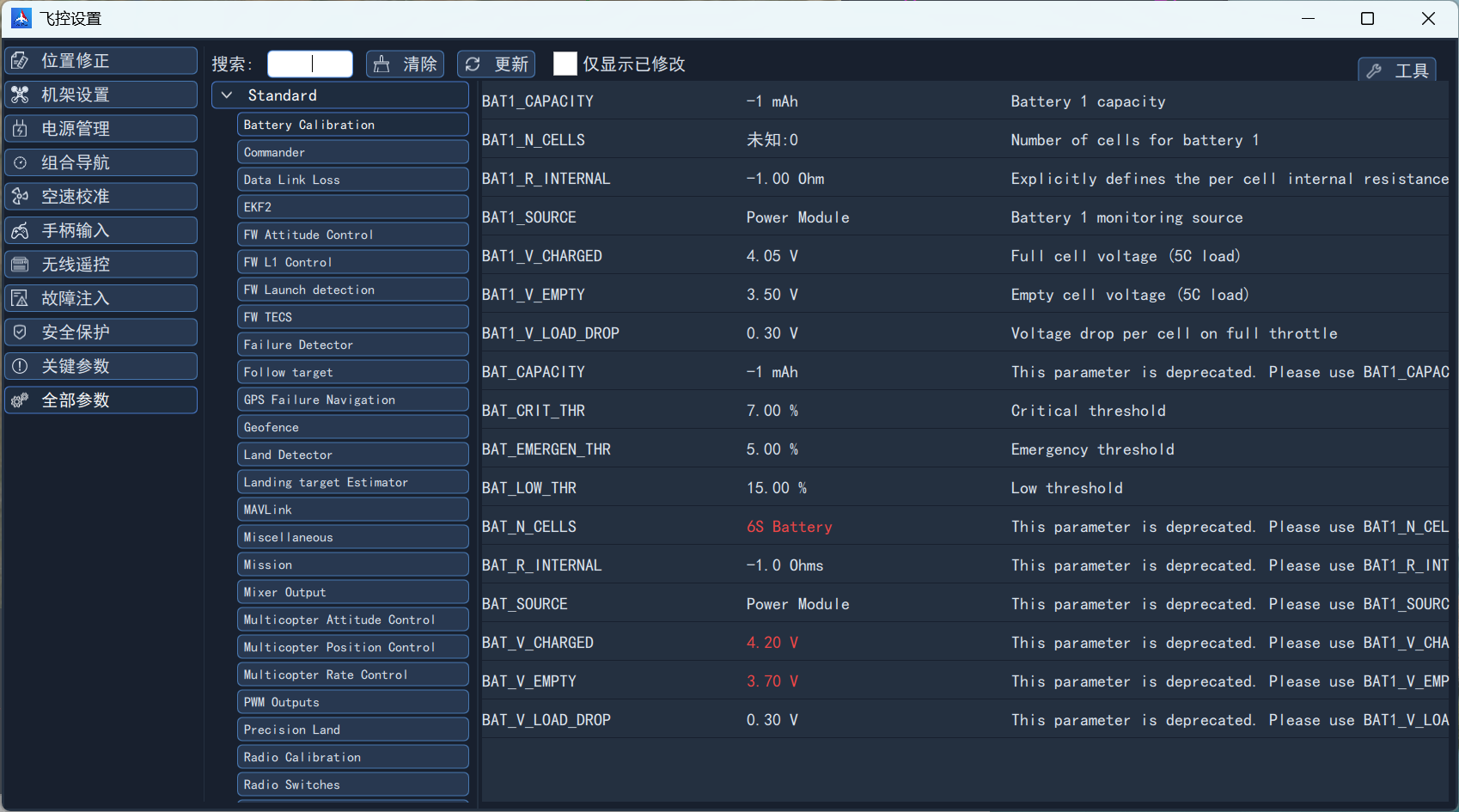
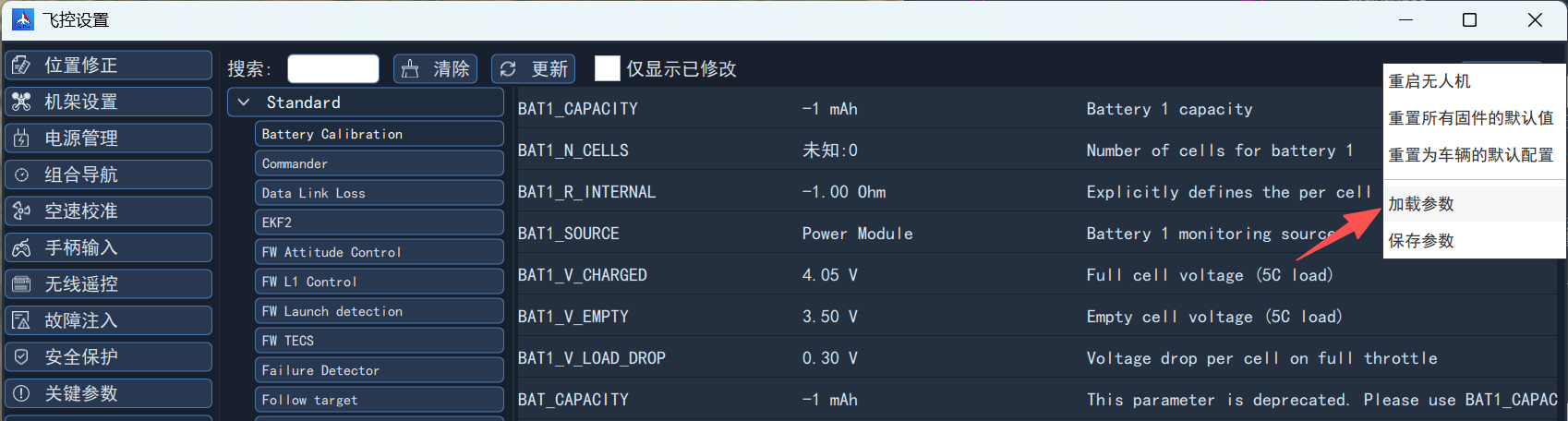
In the Tools section of the left sidebar of the ground station main screen, click to enter the Autopilot Setup screen and select All Parameters to search, view, set, save and load parameters.
Searching and Viewing Parameters
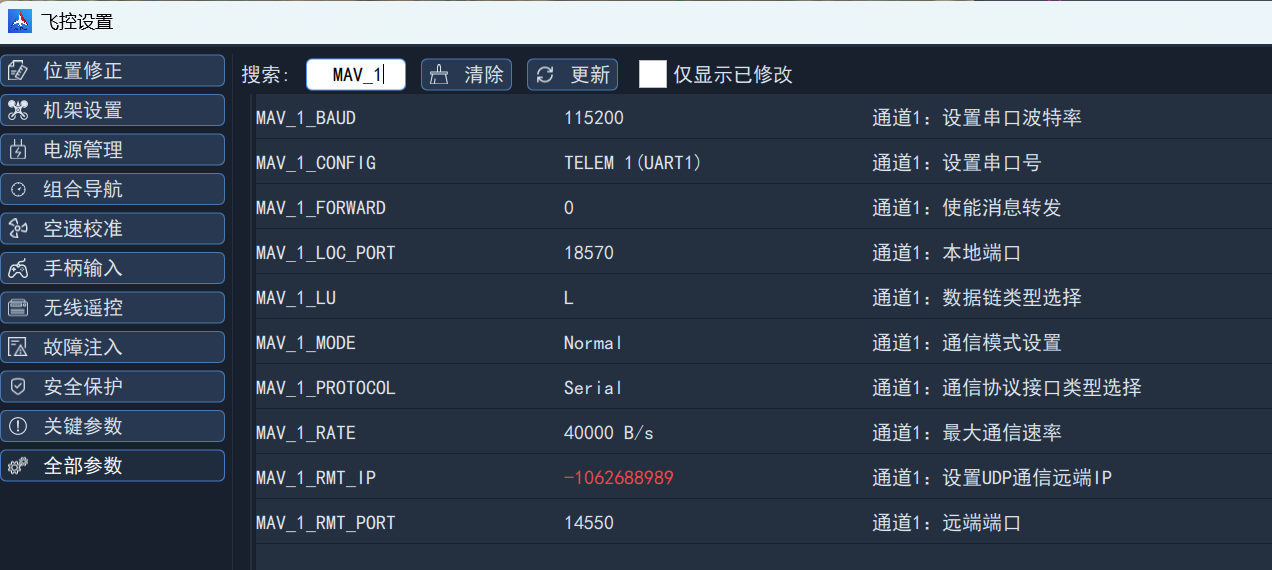
Parameters are categorized by autopilot function module; select a category to view all parameters for that function. You can also enter a keyword in the search box to find related parameters.
Modifying Parameters
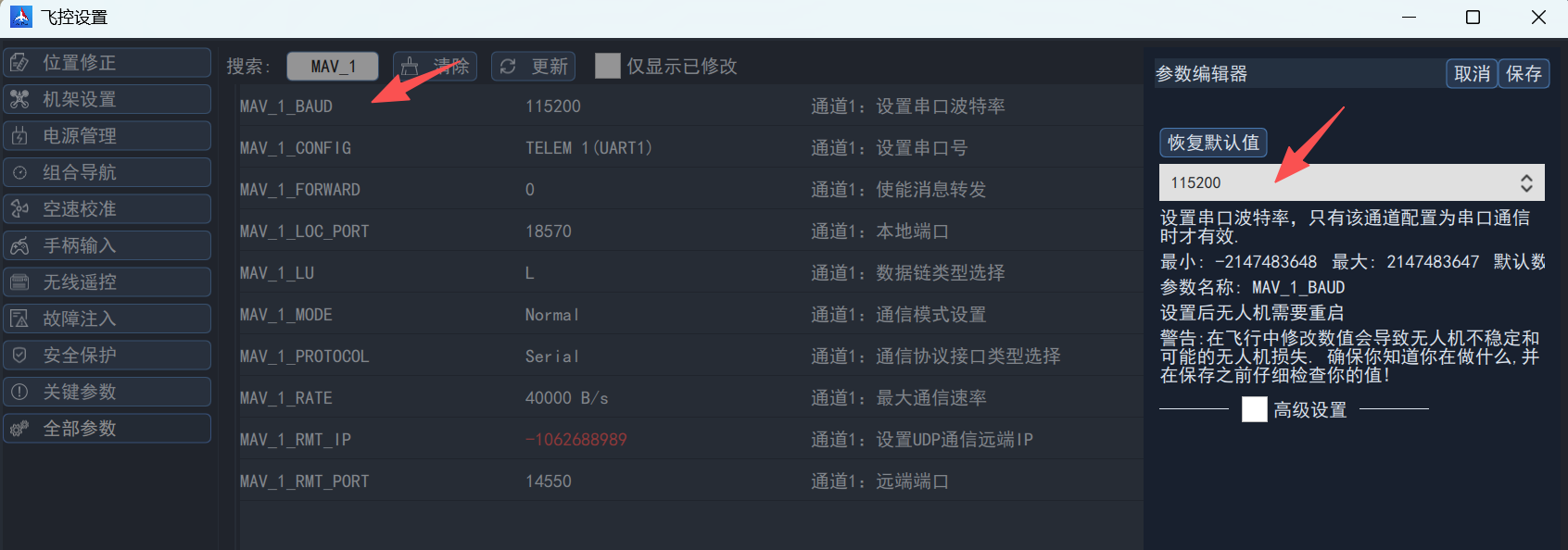
Click a parameter to select or change it in the parameter editor that pops up on the right, then click Save.
Saving to a File
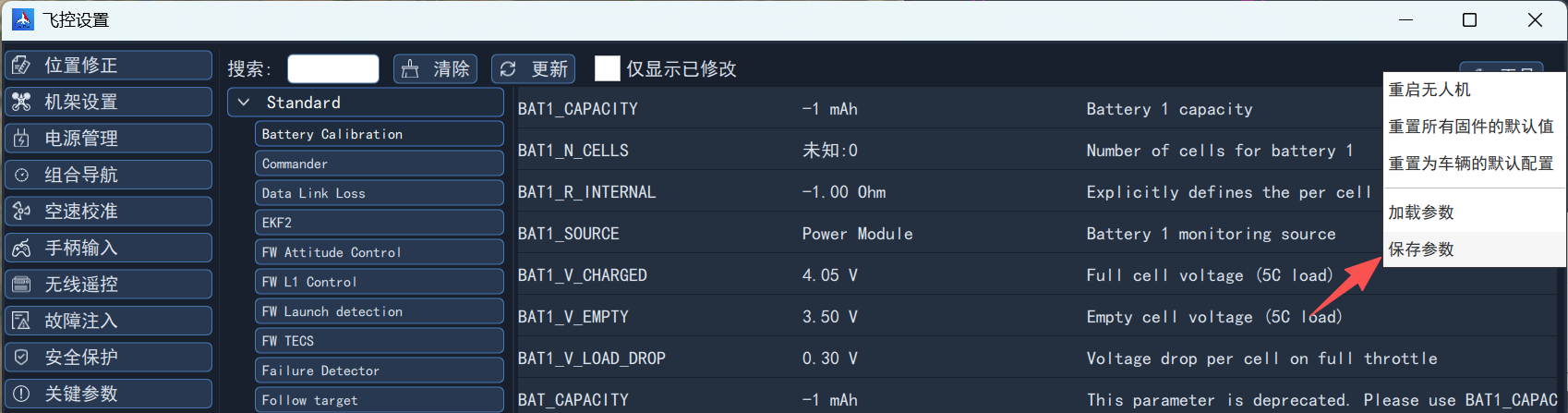
Click the Tools button in the top-right corner and select Save Parameters to save the current parameters to a local file.
Loading Parameters from a File
Click the Tools button in the top-right corner and select Load Parameters, then choose a local parameter file; once loaded, the parameters are written to the autopilot.
Viewing and Modifying Parameters from the Console
During field debugging, parameters can be viewed and modified by connecting to the autopilot console serial port (default RS422-4). Open software such as MobaXterm, create a serial connection and use the following commands:
View a parameter: param show [parameter name]
The parameter name can be a specific name or a regular expression. For example:
- View the UAV ID:
param show MAV_SYS_ID; - View all configuration of communication channel 1:
param show MAV_1*.
Set a parameter: param set [parameter name] [parameter value]
For example: param set MAV_SYS_ID 2