Status Monitoring
After installation is complete, place the autopilot in an open, unobstructed environment. Once satellite positioning is acquired, you can view the basic status in the ground station.
Viewing the INS
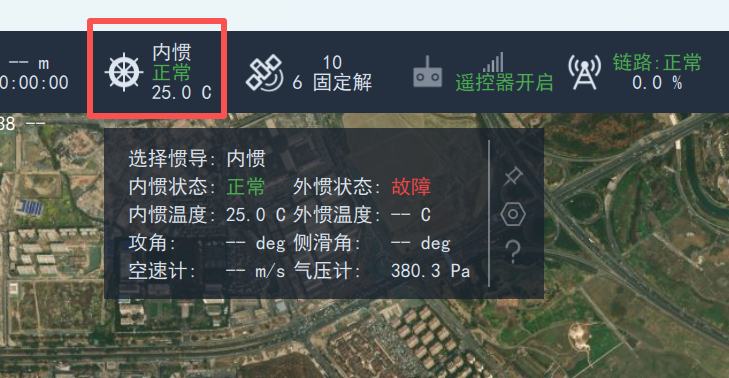
Click the INS icon in the status bar to show INS status data, including the currently selected INS, operating status, temperature and more.
Viewing Position and Attitude
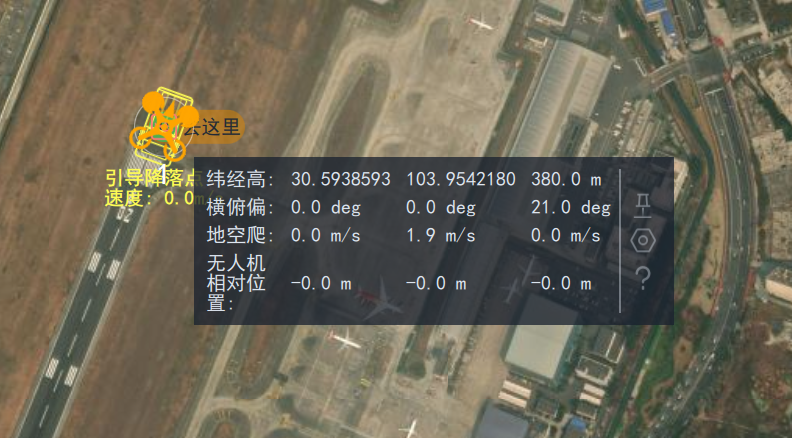
Click the UAV icon on the map to show the flight tag, including UAV position and attitude data, as shown below:
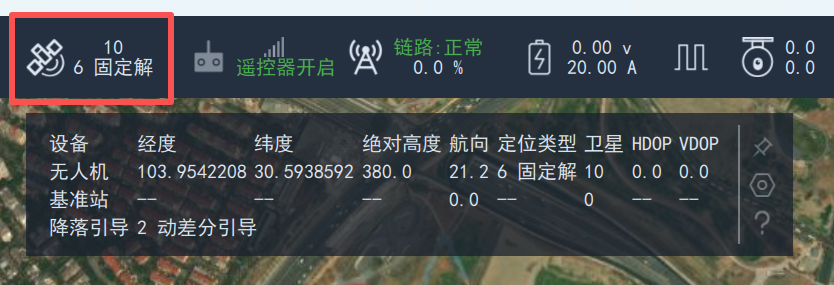
You can also click the GNSS icon to show GNSS status data, including the current guidance status (required for moving platform flight), UAV latitude and longitude, heading, fix type, satellite count and more.
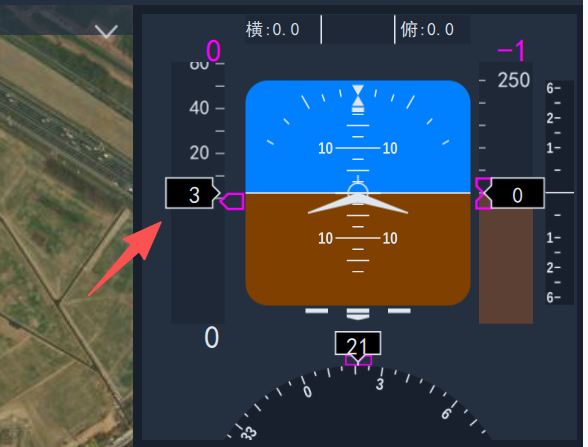
Viewing Airspeed
Airspeed can be viewed in the flight tag or on the instrument panel.
Viewing Voltage
Click the battery icon in the status bar to view traction battery status data, including voltage, remaining capacity and more.
Viewing Messages
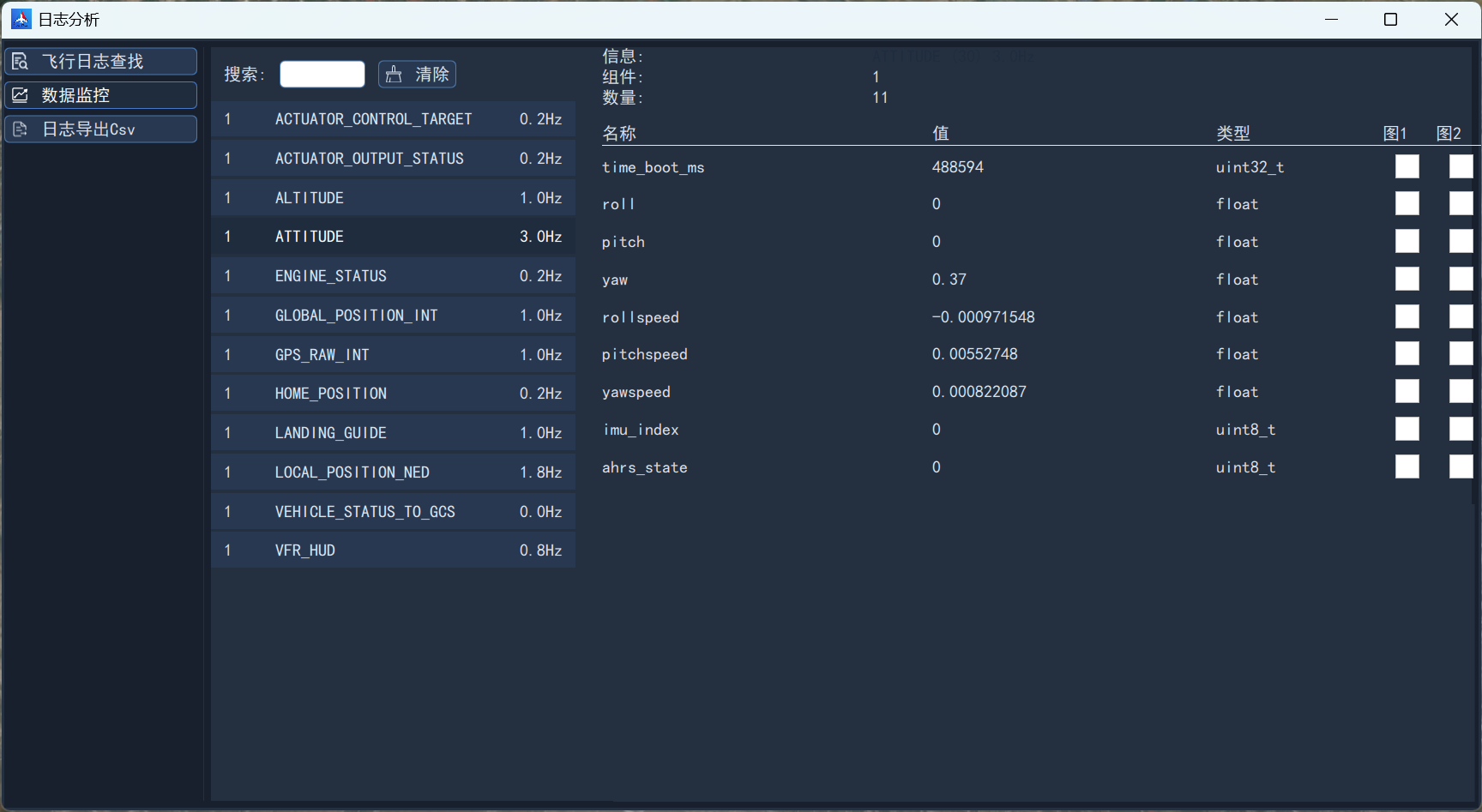
In the General section of the left sidebar, click Log Analysis to enter the data monitoring screen, where you can view all data messages sent by the autopilot, including message name and frequency.