Ground Station Connection
Connection Methods
The NextPilot ground control station supports connections over serial port, UDP unicast, UDP multicast, TCP, logs, video and other devices.
To connect autopilot hardware, use a data link with a serial port connected to autopilot RS422-1 (this is the autopilot default communication serial port); the ground station connects to the data link over a serial or network port.
Any common telemetry or video link (with a network or serial port) on the market can be used as the data link.
To connect a simulated autopilot, create a UDP connection in the ground station using the simulation host IP.
Device Connections
Opening the Screen
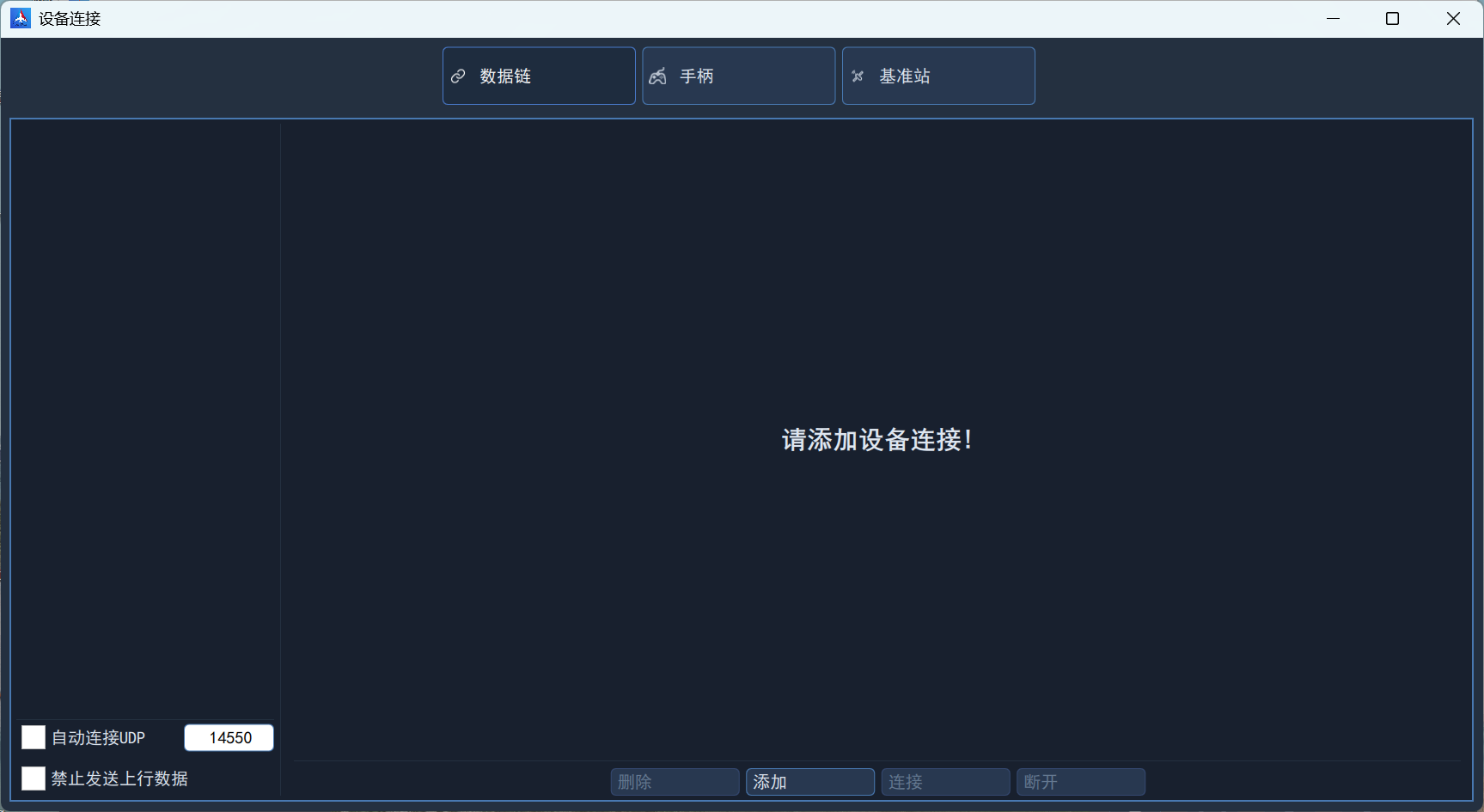
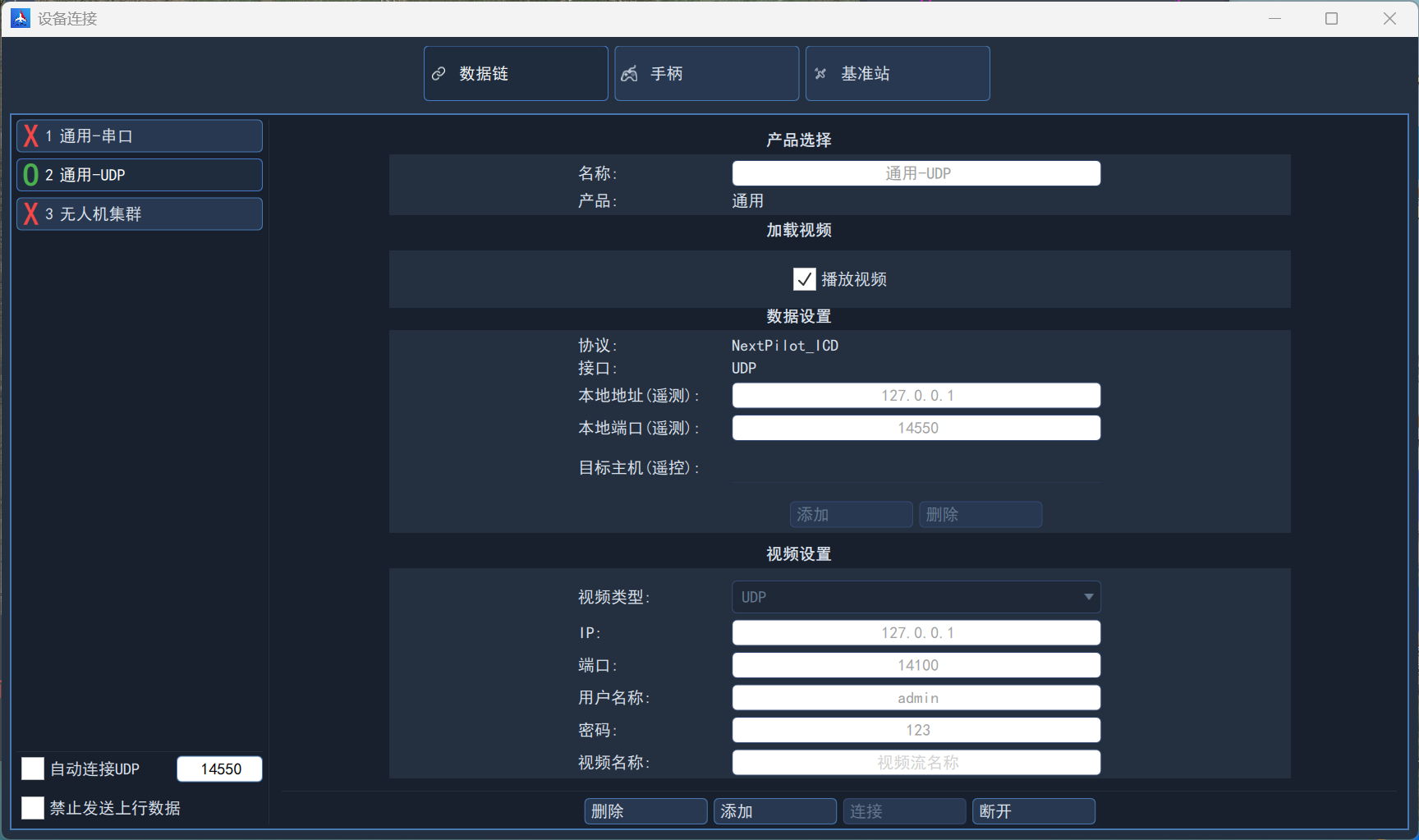
Click Device Connection under the General section of the left sidebar, or click the main menu in the top-left corner and select Device Connection, to open the device connection screen, as shown below:
Automatic UDP Connection
Check Auto-connect UDP in the bottom-left corner of the device connection screen to listen on the specified local UDP port. As soon as UAV communication data is detected on that port, a communication link is created automatically. This connection method is generally used when the data link supports network communication and for autopilot simulation.
Adding a Connection
Click the "Add" button to create a new serial, UDP or TCP communication link. Enter the name, select the protocol, select the interface, and enter the connection settings according to the interface type.
Serial connection
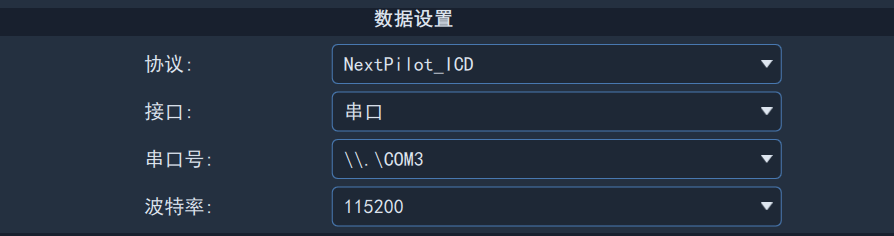
Serial connections are mostly used during debugging. After plugging the USB-to-serial adapter into the computer, you can select the serial device and set the baud rate.
UDP connection
UDP is the most widely used connection interface in real products. Usually you only need to set the local address and local port; the ground station automatically creates a local network server, waits for data sent to the local port and creates a link, as shown below:
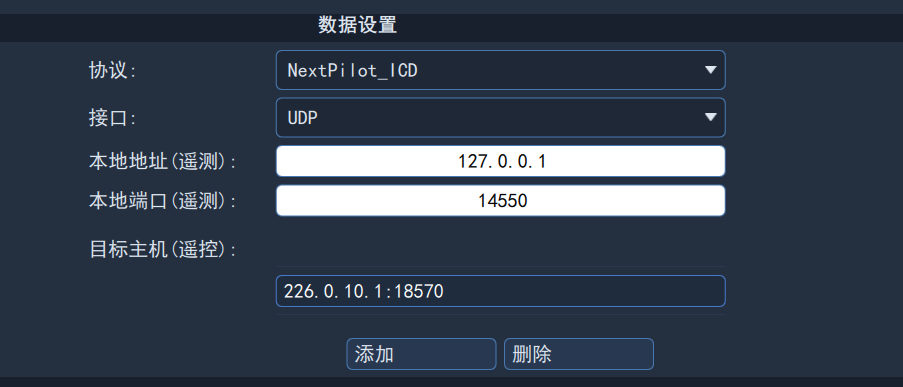
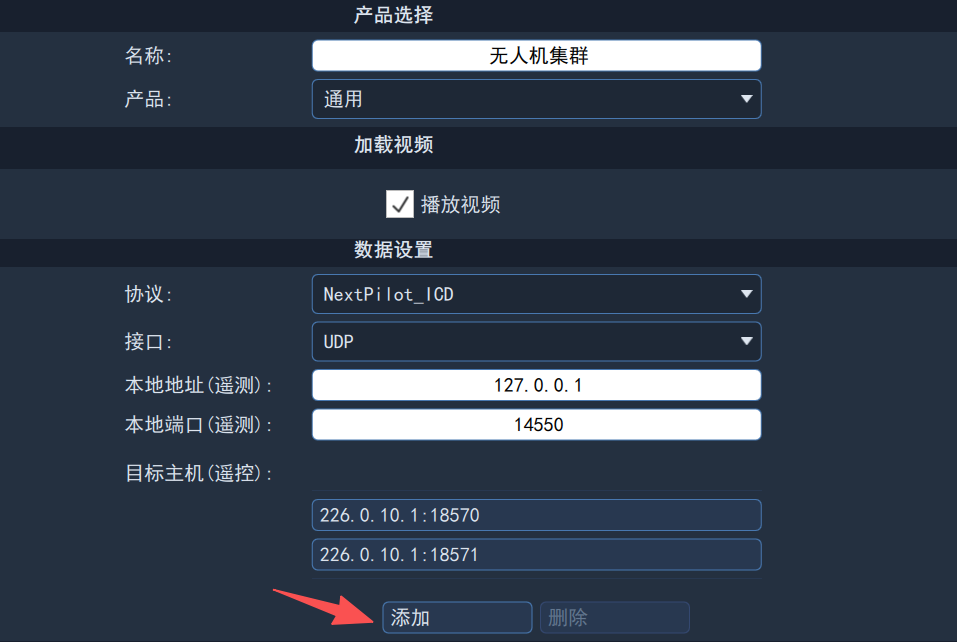
If you need to connect a specific UAV, you generally need to set the multicast address, local port and destination port, as shown below:
Connection List
All created communication links are shown on the left of the screen.
Opening a Connection
In the list of created communication links, click to select one, then click the "Connect" button to open the communication link. After a successful connection, the corresponding link instance shows a green circle.
If you need to connect multiple UAVs, select and open several communication links in turn; the ground station creates multiple instances based on UAV ID and displays them on the main screen.